

Apparently, there’s some sort of football tournament on at the moment. Quite a big one too. I wouldn’t know.
However, the fact that it’s on, and some of the games are on during the working day, causes a few problems in that staff at work want to watch them. And they don’t have teevees. Me to the rescue then, with this motley crew of software and devices:
- An Elgato EyeTV 410
- A PowerMac G5
- VLC
- The VLC Plugin for EyeTV
Of course, this method should work for pretty much any supported EyeTV product and Mac. You’ll also need to know the IP address of the Mac you’re streaming from.
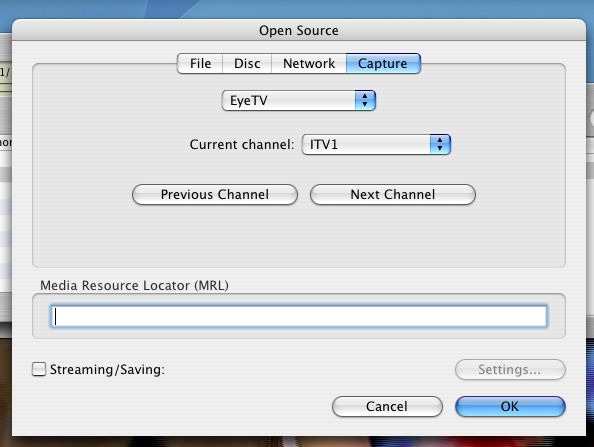 Firstly, you need to install the plugin. You can find this here. Once done, open EyeTV then open VLC. Make sure you can access EyeTV from VLC by choosing File > Open Capture Device and choose EyeTV from the selector. You may find you have to choose Screen then EyeTV again as it sometimes doesn’t “see” EyeTV right away. Pick a channel from the channel selector (you can change this later) and click OK. Don’t choose anything to do with streaming here.
You should now have an entry like “/eyetv-channel=3” in your VLC playlists. Play this, and you’ll get your EyeTV channel in VLC!
Next, you need to so the streaming. Click File > Streaming/Exporting Wizard.
Choose Stream to Network, click Next, then choose the /eyetv playlist from the “Existing playlist item” list, and click Next again. For Streaming method choose HTTP, and leave Destination blank, then Next again. Leave all the Transcode options unticked, click Next, and choose “MPEG TS” for the encapsulation format. Click Next once more. In the next window, click Finish. You now have a ready-to-watch stream!
Now, on another machine on the network, open VLC. Choose File (or Media, depending which version you have) and Open Network Stream. For Protocol, choose HTTP, and in the address box type ipofmac:8080 (where “ipofmac” is the IP address of the Mac that’s providing the stream). Now Play!
All things being well, you should now be watching your TV stream across the network. If you need to change channel, you can do that on the “server” by simply flicking channel on the EyeTV controls.

Remember you need a TV licence for the business/educational premises still… People are only covered by their home TV licence if it’s using a personal laptop or phone and it’s from the battery.
(See http://www.tvlicensing.co.uk/check-if-you-need-one/business-and-organisations/shops-and-offices-aud17/ )
Indeed, and we do have one 🙂
Pingback: Tweets that mention deKay's Blog » Blog Archive » Streaming EyeTV video to the network -- Topsy.com
What version of VLC is this with? I’m using 1.0.5 and I don’t see an [OK] button after setting capture, I see [Open] and it won’t continue further for whatever reason.
actually, scratch my last question, got it working (had to actually change channel to make it work). however, the stream is very blocky with artifacts in the VLC stream, despite being crisp in EyeTV. ah well…
hmm. the streaming/transcoding wizard keeps giving me the yellow ! error but doesn’t actually list an error. Have you ever ran into that?
I’ve not, sorry. It’s a bit out of date this guide now though, with newer versions of EyeTV and VLC available, so it’s possible it now no longer works, or at least may need different options.
For example, it seems that the VLC plugin for EyeTV is now included with EyeTV and not a separate download.
A couple of addition from here:
Server: After selecting EyeTV and a channel, I have to klick next channel to activate the live TV in VLC
Client: For the ipofmac:8080 adress, I need to add http:// for the channel to show up. Full URL “http://ipofmac:8080”
Why stream over http protocol designed for webbrowsing instead of RTP RTSP designed for live videostreaming?
Note: HTTP has fault correction active. If the requested data includes an error, http will stall the download until fault is corrected
RTP RTSP dispalys what arrives and moves on. No stall.
In other words. HTTP works fine in an isolated contained environment with plenty capacity (LAN 1-2 clients). Streaming protocols will keep going even under preasure multiuser etc.
Thanks. Things have moved on a lot from when I first wrote this guide – not all those options were available 🙂
Pingback: How you found me in 2015 - deKay's Blog