

We got a couple of Philips Freevents 11NB5800 laptops at work this week, and they’re actually very nice. Of course, they come with Vista installed, so we had to remove that.
Problem #1
There are no XP drivers for the Freevents 11B5800. There’s nothing in the box (not even a Vista restore disc), and Philips have no mention of any of their laptops on their website. In fact, outside of PC World’s online store, the Freevents doesn’t appear to exist.
Thankfully, the 11NB5800 is actually just a re-badged Twinhead F11Y. It took me ages to figure that out, and it was only by searching for the SATA controller chip that I made the connection. Twinhead helpfully provide all the necessary drivers for XP (and ME and 2000, if you’re that way inclined).
Problem #2
Sadly, you can’t get as far as XP installing, as the XP Pro SP2 install disc doesn’t include the SATA driver necessary for the installer to see the laptop’s hard drive. Of course, this is often a problem, but you can usually solve it by putting the driver files on a floppy disk and pressing F6 when prompted during setup.
If only it were that easy. I had a USB floppy drive and managed to find Ye Olde Floppy Diskette, put the drivers on it, and pressed F6. XP Setup recognised the drivers, and I chose the Mobile variant of the Intel SATA chipset driver, and Setup continued. Unfortunately, Setup still couldn’t see the hard drive.
Problem #3
Then, after some more Googling and getting a hint from someone having similar problems with a HP laptop, I found this page. I tried the same thing, slipstreaming the SATA drivers into a copy of the XP Pro SP2 setup disc, creating a new disc in the process. Booting from this new disc and… success! I could see the hard drive, delete the Vista partition, and start XP Setup!
Problem #4
But then, disaster! The partition formatted, and the files needed for setup were copied to the hard drive, and then the machine rebooted as expected. But that was all – the laptop froze on the POST screen and refused to progress any further. I couldn’t get into the BIOS, I couldn’t boot from a CD, and removing the battery for a while before trying again was futile. Oops!
Luckily, I had another identical laptop. I decided to try the risky venture again, only with one small (and, it turned out, vitally important) difference. On the partitioning options during setup, I deleted both the Vista and the small System Restore partitions from the drive. This time, everything worked fine and after a (surprisingly quick) installation, I was at the XP desktop ready to install all the XP drivers previously downloaded from Twinhead’s website.
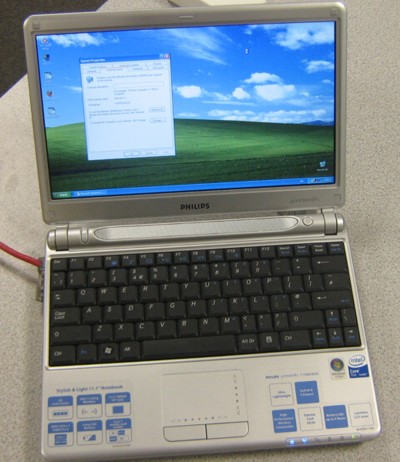
Of course, I still have one bricked laptop, but as soon as I figure out how to get the hard drive out, I’ll have that sorted by cloning the working one to it…

HI Dekay, I have a Phiips freevents X59, its a great little machine. The stickers on the front of the machine palmrest are a bugger to remove and may leave you with a gooey sticky mess to get rid of.
One other thing I should say is that do not even bother to contact Philips if you have a problem. Philips deny all knowledge of being involved in any laptops and will not help you, even when faced with the packaging with Philips all over it and the fact you can register it on the Philips website, tech support deny it. They are arseholes, so if you do have a problem, just deal with PC World tech guys.
Hi deKay!
I have the exact same issue as you with the Phillips Freevents laptop.
I created a new partition, installed XP Pro and now the d*mn thing won’t boot up, can’t even boot from CD!
My question is – were you able to remove the Hard Disk and if so, how? I am confident that if I can remove the drive and format it in another machine this should resolve the issue (probably where the boot records have got messed up on the disk).
Hoping to hear from you!
Cheers,
Simon
Hi Simon,
I had a go at taking the drive out, and have located where it is (under the plastic to the right of the trackpad), but you can’t get at it without unscrewing the screw under the “Void if Removed” sticker. As I didn’t want to void the warranty, I didn’t do that.
However, I did take it back to PC World and they looked at it, agreed it was knackered, and replaced it. You might want to try that?
Thanks alot for your quick response!
Yes, I did notice that “Void if Removed” sticker and was hoping it wouldn’t come to that. I have taken out all other visible screws and managed to get the keyboard off etc, although I think the hard disk is actually under the top right of the keyboard (there is a cooler visible on the outercase and a fan underneath it) rather than to the right of the trackpad.
Do you think if I removed the screw underneath the Void sticker I would be able to get at the hard disk?
To be honest I really don’t want a laptop that I have to return to PC World every time I have a problem with it! I’m still pretty keen to try and get this dual boot working too, I reckon if I delete all the other partitions so that it only has a C:\ for Vista and D:\ for XP that may well work…
Thanks again,
Simon
I’m pretty sure the drive is to the right of the trackpad, as you can hear it. The cooler under the keyboard is for the CPU, I think.
I’m almost certain that taking the final screw out would let you access it. Once all the partitions are removed completely, I don’t think you’ll have any issues at all. You may need to reinstall Vista though.
Hi again, I did as you suggested and took the machine back to PC World who replaced it with another one.
Just wondering – when you installed XP on yours, did you first boot onto the XP CD and use that to remove all the existing partitions and then create a new one? I’m cautious because the last thing I want is for this new one to become a brick as well!! (I’ve already created a XP CD with the SATA driver included and I know this works as of course I was able to install XP before).
However, I might then try to dual boot it with Vista once XP is on there as apparently that is the recommended way round of doing it according to this article:
http://support.microsoft.com/kb/919529
Cheers,
Simon
I booted with the SATA-injected XP Pro setup CD I’d made, and deleted all the partitions from the drive. I then created a single (NTFS) partition which filled the drive, and installed XP there.
I can’t help you with a dual-boot system, I’m afraid, as I didn’t try that. Be sure to report back if everything works out (or doesn’t!).
Thank you so much for writing this blog. You saved me from a fate worse that death… Vista!
No problem – I’m just glad I can save other people from tearing their hair out!
If only this had been posted a month earlier! ! ! I tried removing Vista and got frozen out at the philips screen too. Unfortunately for me, I was even MORE stupid by breaking into the ‘void if removed sticker’. I got the drive out… replaced with a bigger version, and got the whole thing up and running again with a fresh Vista install, but the original drive was knackered… and after putting everything back together, for some reason part of the keyboard (the left side of the spacebar and the Alt key) were raised (allowing dust and all other kinds of crap to easily get in. Two days later the touchpad kicked the bucket… so using a USB mouse was the only way to navigate.
I bought another identical model last month and have been ‘ living ‘ with Vista… but some of my favourite software is incompatible, and there’s just no way I can afford to invest in all new sotware versions. And so, after reading this I’m going to buy a 3rd unit to see if I can achieve what you have now that you’ve posted this solution. If successful, I’ll be happier with this laptop than I’ve ever been. Thanks for posting !
anybody know what the Twinhead model number is for the x59?
Thanks
Tom,
It would appear to be a Twinhead H12M:
http://www.twinhead.com.tw/product_notebook/H12M.asp
thanks. It seems that this is the one they forgot when they put together the drop-down list for downloads.
Im so glad i came across your blog(XP on a freevents)
I`ve just aquired 11NB5800 and would rather dedicate the 2gig of ram to an XP platform than a Vista,unfortunatly for me when i get a notion the price tag is as meaningful as a binary string so within two weeks i had barged through the void if removed sticker and whay hey,at that point it doesnt matter anymore cos your`e not going to get any help from PC world.I managed to strip it down and install another hard drive but guess what,system didnt recognise it.Hence the joy when i found your blog.So i can have XP.Im not a pc wizz but your description seems pretty sraight forward.Thanks
skinz
I’d love to put Ubuntu on it. Goodness knows what would happen!
Hello again,
in following your`e descriptions and with the links you have kindly posted the whole process was a breeze.This makes my freevents a tool im now very fond of.The bottoms coming off again though because i beleive that crucial are on the verge of launching their solid state Sata drives which i think will have a marked improvement in several areas of performance.Also on the verge of aquiring an intel wireless A,B,G,N card on mini PCI-E to compliment my “n”router.Need to be sure what connection the present one is though im led to beleive it is mini PCI-E.Swapping this though means taking the base off and the mainboard out as this is located between the upper casing and m/board,and of course,is there room for the third antenna
…anyway thanks again DeKay .
i have a freevents x65 and unscrewed everything, still tho, the plastic around the keyboard wont lift enough to allow me to get at the hard drive. What do i need to do?
andy:
I don’t know, sorry – I never took mine apart.
ok thanks, its annoying, think i can see it where you believe it is, but dont want to break the plastic lifting it
I’ve been considering buying one of these to run Linux on. Anyone actually got it working okay? It sounds a little suspicious that it’d just stop working entirely because of a minor partitioning problem.. 🙁
Followed the instructions above for my 11NB5800 with the note on partitioning, just deleted all the partitions in fact, added the SATA driver to the XP set-up disk, the hard drive was recognised and XP installed without a problem.
Now running XP pro sweetly – many thanks for all the great information here, very useful.
Thanks for this, i’ve been trying to recover my 5800 all day after falling at the last hurdle turning it into a hacintosh. Got it all to work it Iatkos apart from the network cards. then couldn’t get xp or vista to reinstall because i’d forgotten about the sata issue. Am now happily formatting with my Nlite XP disc. Thanks again.
hey…..i just won one of these on th ebay…..it has media centre on it which lets face it…….is dick.
so….i am gonna slipstream the sata driver onto the xpsp2 disc i have using nlite….BUT
what driver was it exactly……the exact name?>
i am using nlite to build this dis and ther are quite a few drivers under the twinhead sata one
would appreciate your help…
andy
I don’t recall which one it was, but if you select all of the ones labelled “Mobile” it should be fine. XP will use whichever one it needs.
Excellent advice, I tried it this weekend, I now have a phiips laptop that is a lot happier running XP (no more weird spurious screen blanking), the only thing missing is Mah Jong, but I can live with that.
Cheers mate, thanks for writing the guide.
Hi,
Does anyone know what is Twinhead model number is for the Phillips freevents 12NB5800 ?
Many Thanks
Hi Nick,
Looks like a J12S to me: http://www.twinhead.com.tw/product_notebook/J12S.asp
Dekay,
I am trying to locate Xp drivers for the 12NB5800. J12S does not have the Xp drivers listen on the twinhead website it has drivers for the vista OS but than it does not have drivers for the bluetooth and Webcam so does that mean 12NB5800 looks like a http://www.twinhead.com.tw/product_notebook/J13S.asp
???
Many Thanks for your prompt reply.
I don’t think it’ll be the same as the J13S. However, most of the Twinhead laptops seem to have the same or similar hardware, so the XP drivers for some the F11Y or J13S hardware may work on the 12NB5800. If you’ve still got Vista installed, try running some sort of hardware profiler (like SiSoft Sandra) to get a full list of the exact hardware the machine has. You may find that most of the components are generic and the drivers can be had from the parts manufacturer rather than direct from Twinhead. e.g. if the webcam is an Intel-made model, Intel themselves may provide an XP driver.
Thanks for the help,
is the 11NB5800 Bluetooth enabled, if yes are there any XP drivers for it.
Many Thanks
It isn’t, no. However, there are only about three different bluetooth chipsets and there are generic drivers for them all, I think. I’d imagine the one in your laptop will be Intel based, which shouldn’t cause a problem. You might even find XP SP2 has the drivers built in already.
Hi DeKay
Thank you so much for your brilliant blog. I bought a Philips freevents 11NB5800 around Xmas time. I had loads of trouble right from the start trying to run my old progs on Vista, even my printer wouldn’t work properly. So I did what most others folks seem to have done, and tried to install XP. I got past the first hurdle eventually, and slipstreamed the SATA drivers onto a boot disk, and promply bricked up the machine. It went back to PC World, who replaced the hard drive. I then experimented with VM Ware, running XP as a virtual machine alongside Vista. This was far from satisfactory, being slow and unreliable. I decided to try and live with Vista, but it is such a pile of wombat’s doo, I have spent months trying to get it right and failing. I was on the verge of chucking the unit in the river. Following your instructions I now have an XP system, and all my software running sweetly, done in about a day. Great stuff, thank you. The only thing that isn’t now working is the audio. The drivers installed OK, but there is no sound. In Control Panel, Sounds and Audio Devices, it says “No audio Device”. Did you have this problem ? Anyway, this is not a big problem to me, I am just delighted that the unit is now useable.
Cheers
Russ
I didn’t have any problems with audio, no. Perhaps try removing the device from device manager and reinstall the drivers? I suppose it’s also possible you have duff audio hardware.
I have recently tried to partition the hard drive of a Phillips Freevents 11NB5800 and it went horibly wrong as it is rebooting the laptop the whole time. i would like to know how to restore the laptop from the recovery partition. i didnt delete anything but would like to know how to solve the prolem soon.
Thanks in advance for any solutions
Stuart:
Did you make a recovery disc when you first booted the machine? If so, boot from that. If not, you’ll need to go the whole hog and delete all the partitions – assuming you have an XP Pro CD “nlite’d” as described in my post. You’ll need a boot disc to delete the partitions – try a Linux Live CD or something like BartPE: http://www.nu2.nu/pebuilder/
Ubuntu Linux on 11NB5800:
I’ve installed the Ubuntu “Hardy Heron” 8.04 distribution on this Laptop. Everything except the wireless drivers seems to be pretty solid. Wireless networks only reconnect about 1 in 6 times at re-boot and take a long time to connect (2 mins) for encrypted networks. I tried installing the Ubuntu “backports” as I had read that this may fix the wireless issue, but on this hardware it just lost audio support too!
Booting from the old Ubuntu 7.04 distro live CD is much more satisfactory for wireless support, but the battery life indication and glidepad side-scrolling are bugged/unsupported.
I’m still hoping to resolve the wireless support under 8.04, but if not the I’ll go for 7.04 instead and hope that the Ubuntu guys get the wireless “unimproved” back to the level they were achieving a year ago!
BTW: I used the partioning feature of Vista to shrink the NTFS partition 2 to make space for further partitions, then installed Ubuntu manually into partitions I set-up using the gparted live CD. I was too chicken to remove the restore partition 1.
Hi all!
I have a freevents xp 55, and i would like reinstall the xp, but i cannot, because the xp doesn’t see the hdd. I solved this problem, with raid slipstreamer, and the xp installed well, just after the reboot the xp loading, then blue death screen (like a memory problem) and reboot. I tried everything, but no more idea. How can i finish it??
If somebody know the solution, please write for me…
Thanks
Peter,
Have you tried reinstalling XP again over the top?
Hi.. Followed your instructions to the T and now my laptop is super fast under XP.. Thanks ever so much
Pingback: 3 » Philips Freevents Vista to XP
Hi – good to meet you all. I was/am on the brink of buying an 11NB5800 to replace my old Philips – great machine – as I travel a lot and use it all day in front of groups I’m retiring it to the home office as it starting to look shabby. I was just thinking of moving on to Vista as the new machine has it… but after your comments I am not sure. There’s no way I could do all that partitioning stuff – I run loads of Powerpoints – would I be able to run the old stuff on Vista? would the PC World guys do all that partitioning and put XP on for me? thanks Jules
Hi Jules,
If pretty much all you want to do is run Powerpoint, then you may as well stick with Vista. In my opinion, you get a faster, more responsive machine by putting XP on it, but you don’t sound like you’ll be doing anything that’d need a faster, more responsive machine. We don’t support Vista on our network, so it had to go. If you’re not on a corporate network then it shouldn’t matter to you.
Having said that, so long as you follow the instructions I’ve provided and linked to, anyone can do it. You just need confidence 🙂
I doubt very much the Tech Guys at Purple World would put XP on it for you – certainly not at a reasonable price, anyway.
thanks deKay – that is very reassuring…. I’m not saying I won’t do anything else at all on it … but I’m not into games / media nor a techie so it would only be basic stuff. I really just want a lightweight and reliable laptop for the courses I run… and I have been very pleased with the other Freevents laptop. Weird though that Philips don’t seem to own up to any laptops! Thanks for your help … maybe I’ll get a boost of confidence and try your instructions! Jules
Last possibility to recover the HD, my be the following: 1) buy one IOMEGA small portable HD, with USB interface, that includes a SATA HD. 2) swap the HD inside IOMEGA with the one inside the PC 3) reformat the HD using some tools. 4)reinstall the HD. (Good luck.)
Hi, Great blog!
I’m trying to upgrade by X66 to 2GB of RAM. I’ve unscrewed all the screws on the base, plus the ones holding the screen and speaker section, but I still can’t get the base off. All the screws have been removed from under stickers and gromits, but the base only comes partly away. Not enough for me to do what I want.
Any help would be greatly appreciated. Thanks.
Are there any clips or tabs holding the top half of the case to the bottom half? Try running a flat knife round the join.
Everythings ok until you get to the section just above the CD bay, next to the express card slot. This won’t budge a millimete! Like it’s superglued! Perhaps I’ll just try sticking XP on instead. Do you know where I can get the Raid drivers from?
ARRRGH. Now my touchpad has stopped working! Any ideas? I haven’t touched anyting inside the case and there are no obvious connections that I can see.
Panic over! I’m now an expert in dismantling and rebuilding an X66 if anyone’s interested! Everything now up and running. I even upgraded the memory so I’m going to stick with Vista Ultimate. Thanks!
hi again – my next question before I embark on the wonders of PC World support! My new 11NB5800 keep shutting itself off and coming back with safe mode options – a couple of semi-techie friends have looked at all the sleep/hibernate stuff, I’ve downloaded all the updates etc but it still keeps doing it – it’s 3 weeks old! and I deliver training so I can’t have it do this. Is this something obvious or should I brave PC World and its “customer service”! thanks Jules
Hi Jules,
I think you might need to take it back. I presume you stuck with Vista in the end? The 11NB5800 does get pretty hot, so I suspect yours is probably overheating.
Thanks D – yes I did stick with Vista (although a couple of people have suggested I shouldn’t have!) – I also put Norton on it – but someone slapped my wrists took it off and put on AVG free! I feel quite proud though cos I did think it might be overheating – is the fan underneath? wouldn’t it have been sensible to design it with ‘feet’! Ah well – the joys of PC World await me – thanks again j
Hi, I have a 12NB5800 which came with vista! within a week i had it running XP because lets face it vista sucks. The laptop ran XP like a dream, fast and stable. Thing is, i’m now on a linux binge and have Ubuntu 8.04 working like a dream 🙂 yay. FYI, I brought the XP drivers from ebay. Msg here if you want the name of the seller.
I downloaded the file sata.exe which expanded to an extensive folder tree. – iata_cd-application-help-monitor-etc etc. However, I cannot see which files in all this are the actual driver files. What extension do they have etc. Many thanks, Errol
Errol:
If you’re using the nLite method of slipstreaming the drivers into the disc image, you don’t need to worry. Just try the folders you’ve expanded in turn (as you add the driver to the image), and it’ll find the driver files for you.
Thank you !!! I have XP working, BUT,
1. No sound. 2. When typing, the keys with blue symbols are the default. To get the normal letters, I have to press the blue Fn key. ie its function is reversed ! How do I fix this ? ie K gives a 2 unless I hold down Fn.
Hi there ! I have now downloaded the sound drivers from F11Y and the chipset drivers. Will try them, but there doesn’t seem to be a keyboard driver available. I have set all language and regional to UK (including keyboard) but no joy so far. Any help would be very welcome. Is there a keyboard code to set ? Many thanks, Errol
Errol:
You shouldn’t need a keyboard driver. The FN problem is almost certainly because numlock is on – turn it off. You may need to set in the BIOS whether numlock is on or off on boot up.
Can i ask what is the point of instaling xp? Seems like a step back to me. I think nowadays, it is just ‘cool’ to dislike vista, which is a real shame because it isn’t a bad operating system, people just don’t give it a chance.
A lot of people (when asked) haven’t got a clue why xp is ‘better’ they just say it is. If they have any sort of reasonable excuse it can usually be discredited, especially with the release of sp1 which has improved the OS greatly. Did anyone use xp before the service packs? it was riddled with errors and security issues. service packs are microsofts way of saying that they are listening, and no matter what anyone says, no operating system is perfect when it gets released.
A minor nuance that many people have is the UAC, and i do admit that it is very annoying, but it takes literally 2 minutes (including a google search on how to do it) to turn it off.
Rant over 🙂
Hi Joe,
There were several reasons to put XP on these machines:
1) The staff who are going to use them specifically wanted small, XP machines. They’d used Vista, and don’t like it.
2) We don’t support Vista on our network, and won’t until *all* our machines are capable of running it adequately. Past experience with mixed 2000/XP, 98/ME and ME/2000 networks have shown me that having more than one OS on the network causes support hell.
3) A lot of our software (mainly educational stuff) simply won’t run on Vista.
4) Our school management system is not supported if we run it on something other than XP or OS X, and the automatic updates don’t work if you use Vista.
5) The Freevents runs *much* quicker, and cooler (although it’s still pretty warm!), than it does with Vista. It boots in around 20 seconds, instead of over a minute.
hi
read andy’s report on 25 june reference upgrading the 1g ram to 2g on his x66 i’m thinking of doing the same, andy states he has the experience does he have any tips i have tried to locate the whereabouts of the ram thought via the web as there is no access port as on many other laptops and i can’t find any information or drawings on any site, i did try removing the keyboard but alas it wasn’t there.
hi andy, a couple of questions,
1; philips x66 duel 1.06 vista ultimate same laptop?
2; how did you solve the snag with taking it apart?
3; what memory did you get and how good is it running now?
frustrated owner wishing for no slow down!
In reply to the last 2 comments, i recently upgraded mine from 1gb to 2gb of ram.
after the upgrade it boots a lot quicker, but running there isn’t (or doesn’t seem to be much diffrence) but then I thought it was a quick machine anyway.
got the RAM it’s self from ebay, 2gb was ¬£35 delivered
How to install it…….Its a nightmare!
1, remove all the screws from the bottom, 13 in all. 3 under the battery, 3 under rubber bungs, and 1 under a warranty seal and the rest are visible
2, eject the CD (via powering up or the little pin hole to manually eject) remove the 2 screws now visible in on the lip of the CD tray.
3, now the hard bit, with the CD drive open GENTLY pull. What your trying to do here is unconnect the drive on the inside and slide it out of the laptop about 1cm, thats all it will come.
4, once the CD has been dissconnected you can then remove the bottom cover, for this your going to need some kind of plastic panal opener or the like as you will need to gently lever the cover over the VGA port, USB ports and audio ports.
5, the back cover will them come off and the CD drive will come with it.
The ram slot is then visible in the bottom right hand corner of the main board.
Putting it back together is the reverse.
Also worth noting it only has one slot, so buy a 2gb stick, not a 1gb hoping to end up with 2.
Thanks for the helpful comments, Mark!
Hi
I have a Twinhead H12Y (I think its also called a X55). When I first got it I was very pleased with the speed but it has noticeably slowed down over time. I have stopped all the crap that likes to live in the ststem tray. I have defragged it, cleaned it of spyware and adware etc but it is still slower than it should be. It runs XP media edition.
My question is how do I perform a full system recovery please. I know that I need to do it from the recovery partition but I do not know how and cannot find any instructions on the net.
It is my assumption that a full system recovery will get rid of everything except the default factory software. All my other software and data is backed up.
I am not a techie so please can I have instructions in idiotproof language. Thanks.
I have an X56 / H12Y which is total junk. PC world replaced the touchpad 4 times, and the keyboard twice. When it came back the last time no audio, no device found, and no screen backlight. At this point I got fed up and in the end PC world gave me my money back. They didn’t want the laptop back. I have now had the defective card , below the screen in the top, replaced and the screen now works however still haven’t found a fix for the audio problems.
Hi I have Philips 12NB5800 I have installed XP and everysingle driver but my camera doesn’t work the error says check device connection and make sure that any other application is not using this device at the moment. I have launched it under My Computer. P.S When I’ve installed XP the driver was already on can anyone tell me the model of the camera so I can download the proper driver?
My problem is trivial compared with trying to run XP over a Vista installation and other headaches. But I do have a problem. I have a Phillips Freevents X54 with XP, Microsoft Office and Outlook 2003 and sometimes I seem to lose control of my cursor. I can be typing an email and take my eyes off the screen momentarily and the cursor has skipped a line, (or a paragraph), and I find I am typing in the wrong place. Or suddenly the cursor, of its own accord moves to a sidebar and starts scrolling the page up or down.
I have never experienced this before with any other computer or laptop and do not know if it is peculiar to Phillips X54 or is it a quirk in the software installed? Can anyone help please?
Bob
I have 11NB5800 too. Is there any option to have XP on external-USB connected HD or on SD card and keep Vista on the internal HD and decide which OS to boot? That would be great for me because I am not a TechGuy:) – not able to struggle reinstallation and because I am leaving for Africa for few months and that gives me opportunity continue working while one system is bluescreened.
Can you recomend and guidline how to install XP to external HD and setup BIOS? My Vista doesn`t allow me to install XP at all, not even to the external HD or SD card. BIOS doesn`t show me option to boot from USB or SD card, just CD/DVD, HD or some Network:Realtek Boot Agent – what is that?
Thanks for any help
Oops. Oh boy, I really wish I’d read this before trying to install XP on my 5800……..
I now have a 2 month old machine that appears useless, completely locked up as per deKay’s orginal ‘problem 4’ and as far as I can see, irretrievable. Cannot even get into the BIOS to boot from an alternative device. Have rung the Techguys (not Philips) support and been told, wait for it, the installation of any other OS invalidates the warranty.
So, there doesn’t appear to be much point in sending it back to pay for them to sort it – I may as well try to do it myself. presumably by removing the HDD and reformatting in another machine as necessary. Would be very grateful for anyone who has a walkthrough on how to dismantle one of these babies
I think if you want to install XP on this laptop, just use VMWare or any Virtual Machine Utilities and THAT’S IT!!!
I think you’re missing the point. One reason for replacing Vista with XP is that the latter runs much quicker. Running XP in a VM under Vista is only going to be slower – not faster.
Hi Just read some of you blog.
I am looking for a recovery disk for the Philips x55.
Any idea where I could get one?
Thank
jar:
This any use?
Andy if you are still there. I have an X66 and tried to upgrade the memory. My touchpad too has stopped working on putting it back together for no reason that I can see. How did you get it working again? Many thanks.
Just thought I would let people know if they come across this blog and attempt this upgrade. It is not for the faint hearted. You have been warned! The act of opening the case puts strain on the ribbon cables that connect the touchpad and keyboard at the keyboard end. This is why the poblem is not immediately apparent from the inside. If you are unlucky, and I was, they will pull apart from the very flimsy connectors. If your keyboard or touchpad stops working the thing to do is lift the keboard off carefully. There is no need to even have the laptop case open to do this as it just lifts upwards after holding back some plastic clips at the back with a very small screwdriver. Underneath the keyboard you will immediately see the connectors that have been pulled out. One or the other may still be attached hence the be careful warning. It is tricky to get them back but a bit of patience and your panic will be over.
Just in time, I bought a Philips 11NB5800 with a non-working touchpad and it’s now alive again!!!!!!.
Thanks a lot, but I’ve to add a little comment: do not force the keyboard, there are two screws beneath the notebook protected by ribbon pads just in the middle. Unscrew them first and the rest of the operation is easier and don’t break anything as I almost did.
Hey my problem is not nearly as technical as any of yours the letter m on my x59 is not working its just stopped despite not actually being broken, i went into PC World and they said they’ll fix it for 230 squid i thought maybe i could buy a new one and fix it myself however i cant find any parts for what is apparently a twinhead h12y in god knows where freevents x59 that only exists in pc world and an averatec in america has anyone got any good advice for me before i throw it i cant copy and paste the letter m forever and i dont want to plug a keyboard into the laptop unless i have to 🙁 x
can anybody help me out, i cant find the SATA drivers for a H12Y anywhere, does anybody know where i can download them from as they are not in the Twinheads website
Cheers
Andy
Hi Andy
Is this any good http://www.twinhead.de/support.html I bookmarked this site for Twinhead Germany some time ago as it had an archive of drivers. I’ve had a quick look and it does seem to have SATA drivers for H12Y
Hope this helps. John
For the freevents 12NB5805 (12NB5800 is the same i think, the J12S) there is an option in bios for the hdd to run in IDE mode instead of ACHI, dont know if this applies to the other models mentioned here. Xp boot, found hdd and installed with no need for sata drivers (all partitions deleted like dekay seid (thanks!), now for the rest of them (drivers)…
Just for info. The drivers listed on twinhead site no longer seem to work with slipstream disks. For the X59 I downloaded the drivers from here : http://www.download.com/SATA-Driver-Intel-Ver-7-0-0-1020-zip/3000-2122_4-162224.html
I take back my last comment, it didn’t work. But the guide here did with a link to the German twinhead drivers did work!
http://www.zerostarter.net/4.html
I, or rather my wife has a wonderful Freevents X56.
A bit of tea was spilt on t’keyboard and as such a few keys do not work. We get by with a USB keyboard, but look a total tit on the train. Anyone had any experience of removing/replacing t’keyboard and the gubbings directly beneath due to a spillage – perhaps due to some one handed web surfing?
Other than that it runs sound on XP, we bought it with XP installed, but will never buy a laptop from WC-porld ever again and especially not one with a made up name by a company that swears it never released it.
X56 you look the muts nuts but you are the illegitimate son of WC-world
We have had it now for a long time and the silver has worn off around the mouse
If anyone is seeking drivers for the Philips laptops I am now shipping them on CD. You can message me via my page on Ebay with any questions, be glad to help.
http://cgi.ebay.co.uk/ws/eBayISAPI.dll?ViewItem&ssPageName=STRK:MESELX:IT&item=290293681464
thanks and hope this was useful!
in the original post dekay mentions deleting the system restore partition, but when i boot the disk it only comes up with the cd drive and vista partition. plus 2 unpartioned spaces. does this mean there is no system restore partition?
Hi Daz,
I think one of the unpartitioned spaces is actually the restore partition, it’s just Windows doesn’t recognise it.
ok, the unpartinioned spaces are 1mb and 2mb, but there is no option to delete them, only to create a partition. is it worth creating a partition then deleting it, just to make sure.
Hmm. If you delete all the partitions, you should end up with one single unpartitioned space. Is that not happening?
Hi,
I’m sure I’m missing it but I’m going to create an XP disk to downgrade to XP on my 11NB8400 but I can’t find a SATA driver for it anywhere. The hard drive is a Hitachi HTS541616J9SA00, am I being stupid or does a driver not exist? Any help would be appreciated as when I try to reinstall vista in gets to the end of the setup and tells it cannot configure a component and asks to restart setup–which is waste of time. Pleeease a link to a drvier would be great!
Frasbo,
download the latest BIOS from twinhead and you have the option in the BIOS to enable IDE 😉
You can then just install XP from standard CD
DeKay.. you just saved my life. i had the same numlock problem as Errol and couldn’t figure out what the hell i’d aciidently pressed.. thanks!
Found this, perfect for the h12 slipstream 😉
http://www.thgmbh.de/models/H12Y/driver/XP/
Hi,
I have a Philips Freevent X59 and the fan sotopped working. I tried to remove it but it looks hat if is fixed to the motherboard. Any idea how to remove it?
Thanks.
Hi,…I think I’ve made a big mistake on my Philips Freevents 11NB5800,…I got a copy of Windows 7 and decided to go for a clean install,… thus formatting vista away and installing on the freshly formatted drive,….. now I have a problem,… when I power up, it gets stuck on the Philips screen,.. and my only option seems to be pressing delete, which takes me to a bios screen with very few option f12 to boot from network & f11 for BBS popup,.. neither of which seem to do anything,.. any help is gratefully received. Danny
hi all after reading through all of this im still having some major issues can anyone tell me which drivers im looking for on twinheads for a freevents x54 only this one is driving me mad
thanks
Danny
I have just done the same as you, installing Windows 7 RC1 and now I get the same BIOS options as you.
Have you managed to find a solution to this?
Thanks
My 11NB5800 had 3 days left on the warrenty when I had my issue with Windows 7 so I took it in to them. They sent it away and replaced the HDD, it is now as good as new. I have since installed Windows 7 without issue so I wonder if a batch of these had faulty HDD and this is only seen when repartitioning and formatting. It seems we’ve all had similar issues… My advice, just replace the drive and it should be fine. Hope this helps someone.
Cheers
Ian
Hi everyone,
I have a philips freevents X71.I want to find the drivers for XP.I know that they exist on the internet because I once found them by luck in a German site which had only for 2 models the drivers, mine and another.I read fron many people that the freevents series is actually Twinhead. Can someone help??
Cheers
Thanos
Hey Ian,…In the end I removed the hard drive and fomatted it ,..then re-installed the original vista & instead of a clean Install, I did an upgrade to windows 7 which worked perfectly 🙂
Anyone Know which Twinhead Bios is the correct one for the Philips 11nb5800
Cheers Danny
Hi,
Can anyone tell as how to reinstall vista on 11NB5800. Is there a recovery partition that i can use. Actually OS has corrupted on the machine and we don’t have the recovery disk.
Was wondering if these machines come with a preinstalled recovery partition. Help really appreiciated.
tx
Khalid
Thank you for publishing this. I have recently dealt with a similar situation with a Philips laptop. Your post here really helped me out. THANK YOU!
hi guys, What is this no one give a easy solution how to install xp on freevents any x series………
Thanks for the info on how to Install XP in Philips Frevents… but I have a still problem in AUDIO DRIVER for Philips Freevents X59.. pls. kindly tell me where can I get that driver. Thank you.
The driver should be on the Twinhead site. Go to Support > Downloads (or click here) then pick F11Y from the model list, and Driver from the Category list. The XP Audio driver is listed. In fact, this should be a direct link to it.
Hi all, I have the Freevents 11nb5800 and the power button does not operate. has anyone had this happen to them and knows of a solution? I think the button itself, works, and the only way I can start it is with the Media button on the opposite side. once stated the media button acts as a media button should do and the power button still does nothing. I have looked for a keyboard driver, no luck. Help!!! Stuart
Hello,
I managed to install Xp (on my Philips Freevents X59)by using my netbooks recovery dvd (It is a MSI U100 Wind) but can’t get any of the drivers to go… WiFi would be nice! If only one driver worked, I can put up with shitty graphics if WiFi works.. any suggestions? theoperaghostuk@hotmail.com
Hi, any of you guys with a Philips 12NB5800 prepared to email me a copy of their Philips rom file. I uploaed the twinhead version, and of course my copy of windows has deactivated
afudos.exe Romfile.rom /O to export
Danny said that after “bricking”, he got to the point of:
f12 to boot from network & f11 for BBS popup
while deKAy wrote that he couldn’t get into the BIOS
Which one is true? Can any of you tell me their BIOS version? I’m soon going to have one of those delivered, and booting from net is acceptable for me while having no option isn’t.
@rhn,
There’s every chance both are true! I certainly couldn’t get into the BIOS. I couldn’t tell you what BIOS version I had though, as I no longer have access to the laptop – it was passed on to someone else.
I managed to get Linux running on a Philips 11NB5800, with BIOS version 1.01. It’s Mandriva 2010.0, and the only problem I had was blank screen at one point of the installation.
I managed to work around this by switching to another console when the error was about to happen (alt+ctrl+F1 or alt+ctrl+F2) and switching back (alt+ctrl+F7). The cause was something WiFi-card related, so you might just try turning wireless off while installing.
If anyone wants hints on installing Linux, I can try to help: my email address is rhn ( at sign ) o ( digit two ) ( dot ) pl
after a week of desperate searching I finally found the audio fix for xp on the x59
http://geekswithblogs.net/lorint/archive/2006/06/11/81540.aspx
you just need to download and run this file …
http://couponmeister.com/blog/HD_Audio/KB835221.exe
I had trouble finding drivers for XP for my PC Philips MT6000 Freevents. I found these drivers:
http://hotfile.com/dl/39981736/35922d7/Philips-Freevents_MT_6000_XP.rar
if someone has later please let me know.
If anybody needs them I have the Philips Freevents H12Y AHCI driver files for the Intel Chipset here. (inc TXTSETUP.OEM for first boot use)
http://www.divshare.com/download/11297556-0c2
am having problems with an x54. when i boot up i get a series of double lines running down the screen. checked hdd in another unit no problem, but can only access it in safe mode on the x54. any idea
hi just bought a philip 12nb5800 from the laptop now it came with 3 problems which i kindly need help with first is the fact that the audio is not workiking it says no audio output installed
2 my u key is not working i have taken it apart but it is styill not working just the udo i need to buy a whole keyboard for it to work lastly the camera also does not work before the person sent it out he did a restore to original factory setting from the built in partition so i believe every driver is ok please help please
can someone help me locate a battery for a philip 12nb5800 mine is completely dead and a dvd drive for my philip 11nb5800 i pull out the old one which has stop working
Hi All.
If any one wants a recovery DVD for X59 then PM me.
Amilod, can I take you up on your offer of a recovery DVD or even a downloadable ISO of it? Thanks so much! Let me know how to get it from you? 🙂
Hi, I’d just like to say, what a interesting article! i am just doing a bit of research for my blog but i had trouble reading this article as the text protruding in to the side menu…. Edit: apologies, the problems my end, it is my ancient version of chrome causing the fault. Could be worthwhile telling people to update? All the best. Burt
How can i get Philips freevents 12NB 58000 Driver for xp.
Plz give me solution for Philips Freevents 12NB 5800 Driver for xp as soon as possible………….plz
hiya. I downloaded the SATA driver files from the website you indicated. When they unpacked there were 2 CAB files plus an installation application – no INF files for the nLite to import into the XP operating system.
I ran the install and did n’t get any options as to where the INF files were going..
Any pointers??
Many thanks – Stewart
drives philips 11nb5800
Anyone find drivers that work? The web site indicated seems to have disappeared. If anyone has the sata drivers for the 11NB5800 would really appreciate them or if you’re a real star fancy posting an ISO for a disc that will boot on this machine? I deleted the disc partition on the hard drive which is the death nell for these beasts….
Oops I got me contact detaiols wrong in last post.. This one gets me
I have the x55 and can’t reinstall because I don’t have a sata driver so my generic xp disc can’t see the hdd in the laptop, and the links to the twinhead site are all dead. Any help welcome – luke.d.osullivan@gmail.com.
Hi all, I have two Philips Freevents Laptops, an x56 and an x65. Both are missing the HDD’s and I’m wondering if anyone can help me with a System-Restore CD/DVD? I’d be much appreciated as I’ve bought them to give as presents to my Niece and Nephew, email me on woz47dylan@yahoo.co.uk
Hi,
I’ve got the original driver disks, and I have downloaded off the twinhead sit, but it doesn’t seem to help. There are no .inf file, so the nlite software wont pick up the drivers. I’ve messed around for ages and used my own .inf:
[autorun]
open=setup.exe
but no success so far.
Cheers,
John
Hello again.
Well I’ve solved this problem. It tool me a couple of weeks (on and off). The solution is pretty simple in the end. Upgrade the bios (H12YT_BIOS_R1.08 for an X55) and then you can install Windows 7 – Voila!
🙂
John
Hi i have Philips freevents x58 on which thinhead model it correspond ? i need audio driver for xp the everest program say Conexant Cx20549 @ Intel 82801GBM ICH7-M – High Definition Audio Controller [B-0] PC but i cant find it anywhere
I have a Freevents X200 and had to change the HDD and when I try to load Vist I go as far as inputting the CoA and then it asks me for the drivers, what drivers ? I bought a recovery disc which cost me £15 but it does not help any. Does anyone know what I need to do and how to do it, I am no buff just basic knowhow is it.
I also have a Freevents X59 and cannot load Vista at all as it does not see the HDD again in very simple terms how do I get round this please, thanks for any help but please keep it very simple, thankyou.
Oh yeh I have the Freevents X55 running XP and it works great but I can’t get it to find my network, it can’t find any networks, how do I tell it where to look, I have tried everything I know and still nothing but on my other X59 running Vista it sees my Network and all the routers in the area, why not on XP? Thanks again, in know it’s alot to ask and yes I do own many Freevents but I have a big Family just in case you wondered why I own so many, thanks guys
Hi Ken,
The problem with these Philips laptops is that they were actually a bit ahead of their time. The HDD is a SATA drive which was very new when th machines were made. Consequently the Windows XP install disk (and from what you say Vista) doesn’t have the drivers, hence this thread about slipstreaming the drivers. I had no success with this and I couldn’t install Windows 7 (which has the necessary drivers) because the bios didn’t support this. Eventually I upgraded to the latest bios for the Twinhead mobo. Then W7 installed ok. I think this is the easiest and least technical solution.
Cheers,
John
Hi, I am having the same problem grrr, I have formated the hard drive and tried to install windows 7 and vista but cant get past the philps start screen. I have now tried installing the os onto the hard drive from a seperate computer but still no sucess. I was able to access the bios in the begining but cant even get to that now.
Seriously panicing now as I was doing this for a friend who had a magor virus and have done it to load of other pcs with out an issue. Think I may have bricked it.
I have tried booting from a usb drive to update the bios but nothing seems to work. Its the dreaded philips freevents 11nb5800.
Please if anyone can help email me matt@otlclothing.com
Recently installed win 7 from DVD on a perfectly working vista X 66. I chose to delete all partitions at the install screen. On reboot got stuck at Philips start up screen. Restarted pressing del key for BIOS. But machine was stalled after a few lines of text not even allowing me to enter the BIOS. However it did show error 85 or 87 at bottom right of screen so obviously it had stalled at a BIOS instruction. Panicked. After reading through this I tried exchanging the hard drive rather than updating BIOS. (A fujitsu 80Gb for a fujitsu 100GB). Amazingly it worked first time so simply went ahead with installing Win 7 from DVD. Now here’s the stranger bit I tried the X66 hard drive attached to my desktop. The BIOS stalled in attempting to read this drives information but after a while it continued on ignoring it and not loading it into BIOS. I then restarted and it saw the drive loaded it into it’s BIOS and it has been working ever since. This solution has been reported before but god knows what’s happening
Recently installed win 7 from DVD on a perfectly working vista X 66. I chose to delete all partitions at the install screen. On reboot got stuck at Philips start up screen. Restarted pressing del key for BIOS. But machine was stalled after a few lines of text not even allowing me to enter the BIOS. However it did show error 85 or 87 at bottom right of screen so obviously it had stalled at a BIOS instruction. sorry 4 copying you but thats exactly whats haping 2 me F—- IT TRUST IT 2 BE A FAMILY MEMBERS AS WELL THOUGHT WIN 7 NO PROBS HOUR TOPS A VIRUS YOUR AWAY HELP WHAT WOULD YOU SUGGGEST ?
Hi Mick. Like I said in my previous post I had a perfectly working vista Philips X66. After trying to install win 7 on it it failed to reboot and stalled at the Philips splash screen and wouldn’t even enter the BIOS. The solution for me was to exchange the hard disk in the machine for an alternative one and then it worked again no problem. Others have said they have done this also. Don’t see how simply installing Win7 stops a hard disk from working and also prevents you from entering the BIOS but this is what happened to me. So maybe you should give this a go. Others say update the BIOS but I don’t see how you could do that now from the position you are in.
laptop froze on the POST screen and refused to progress any further. I couldn’t get into the BIOS, I couldn’t boot from a CD, and removing the battery for a while before trying again was futile. What should i do
Phillips laptop 11NB5800 laptop froze on the POST screen and refused to progress any further. I couldn’t get into the BIOS, I couldn’t boot from a CD, and removing the battery for a while before trying again was futile. Oops! – See more at:
Many thanks for your comments. It’s been a great read to see your posta and let me avoid your mistakes.
I will clone my existing Vista HDD firstly and then attempt to install Windows XP.